-
Shop
- Advanced Technologies
- AI Career Advantage Collection
- Apple Accessories
- Bathroom
- Best Sellers
- Black Friday Sale
- Car Accessories
- Digital Products
- Digital Resources
- Fashion
- Furniture
- Gadgets
- Gift Ideas
- Health & Beauty
- Home
- Home & Garden
- Home Decor
- Home Electronics
- Home Supplies
- Independence Day
- Kitchen
- Lighting
- Mother’s Day
- Patio, Lawn & Garden
- Pet Supplies
- Pets
- Samsung Accessories
- Special Deals
- Sport & Outdoors
- Super Deals
- Travel & Outdoors
- Watches
- New arrivals
- Featured
MacBook Sleeve Sizing: 13, 14, 15 & 16-Inch Fit Guide
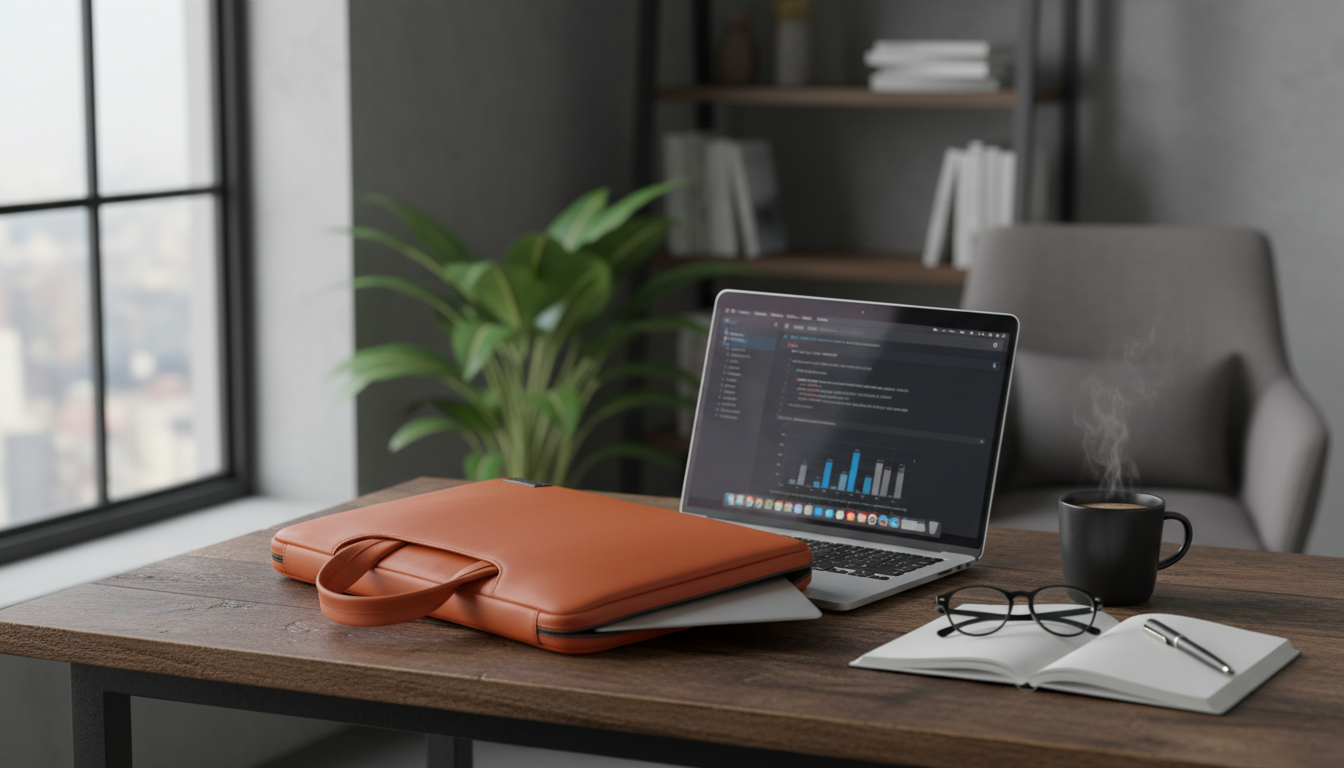
How do I choose the right laptop sleeve size for a 13, 14, 15, or 16-inch MacBook?
The inch number in a MacBook’s name is the screen size, not the exact outer dimensions. To get a sleeve that fits well (snug but not tight), match the sleeve’s internal dimensions to your MacBook’s actual width and depth, then account for any case, keyboard cover, or skins you use.
1) Identify your exact MacBook model and year
“13-inch” and “14-inch” MacBooks can vary in footprint depending on whether they’re an Air or Pro and which generation they are. Look up your model (Apple menu > About This Mac) so you can confirm the device’s real dimensions before you shop.
2) Compare internal sleeve measurements (not the label)
Many sleeves are marketed by laptop size (13/14/15/16), but the best indicator is the sleeve’s internal length and width. Your MacBook should slide in without forcing corners or stressing the zipper, and it shouldn’t rattle around when you move the sleeve.
3) Factor in added bulk
If you use a hard shell case, thick skin, or carry a USB-C hub inside the sleeve pocket, size up only if the sleeve is designed to accommodate accessories without pressing into the laptop. Extra-tight sleeves can compress the edges and make insertion difficult.
4) Choose the fit you want: slim vs. forgiving
A slim, form-fitting sleeve is ideal for backpack carry and minimal bulk. A slightly roomier sleeve can be more convenient if you frequently remove your laptop or want extra padding, but avoid excessive space that allows shifting.
For model-by-model guidance and sizing tips, see the full guide here: https://emerchantoutlet.com/how-do-i-choose-the-right-laptop-sleeve-size-for-a-or-inch-macbook/.
FAQ
Should I buy a 13-inch sleeve for a 14-inch MacBook?
Usually no. A 14-inch MacBook often needs a sleeve sized for its actual footprint, and many “13-inch” sleeves are too tight. Always verify the sleeve’s internal dimensions against your MacBook’s measurements.
Recommended for you

Measure Your Baby for a Romper: Quick Fit Guide
Jul 27, 2026













Leave a comment